
Hotglass

Glass keys for your Mac. On the screen in your hand.

Hotglass turns your iPhone and iPad into shortcuts, sliders, a trackpad, and a keyboard that shift automatically with the app in front.

Mac app coming soon App Store · coming soon

Mac app free · macOS 14 or later · iOS 17 / iPadOS 17 or later

Shape it on your Mac. Tap it on your iPhone and iPad.

Where it shines

Leave the desk. Keep the keys.

A plastic button box stays wherever its USB cable reaches. Your iPhone and iPad go everywhere you do—bringing your shortcuts, a trackpad, and a keyboard along for the ride.

01 / 05

Vibe code from the couch

When an AI agent is writing the code, you don’t need to sit at attention. Lean back with your iPhone: tap to approve a diff, rerun the test suite, or scroll terminal output on the trackpad. Hold down a key to dictate your next instruction, or type a quick follow-up—with ready-made panels for AI chat apps and terminal agents.

  • Approve
  • Retry
  • Run Tests
  • ⌃C
  • Trackpad
  • Hold to Talk
  • Type Prompt

02 / 05

A Mac mini on the big screen, minus the lap keyboard

Hook a Mac mini up to the living-room TV, a projector, or a spare monitor. Pair once at your desk, and as long as the Mac is awake on the same Wi‑Fi, your phone is its trackpad, keyboard, and media remote—nothing extra to pack or charge.

  • Trackpad
  • Keyboard
  • Volume
  • Play/Pause
  • Spotlight
  • Lock Screen

03 / 05

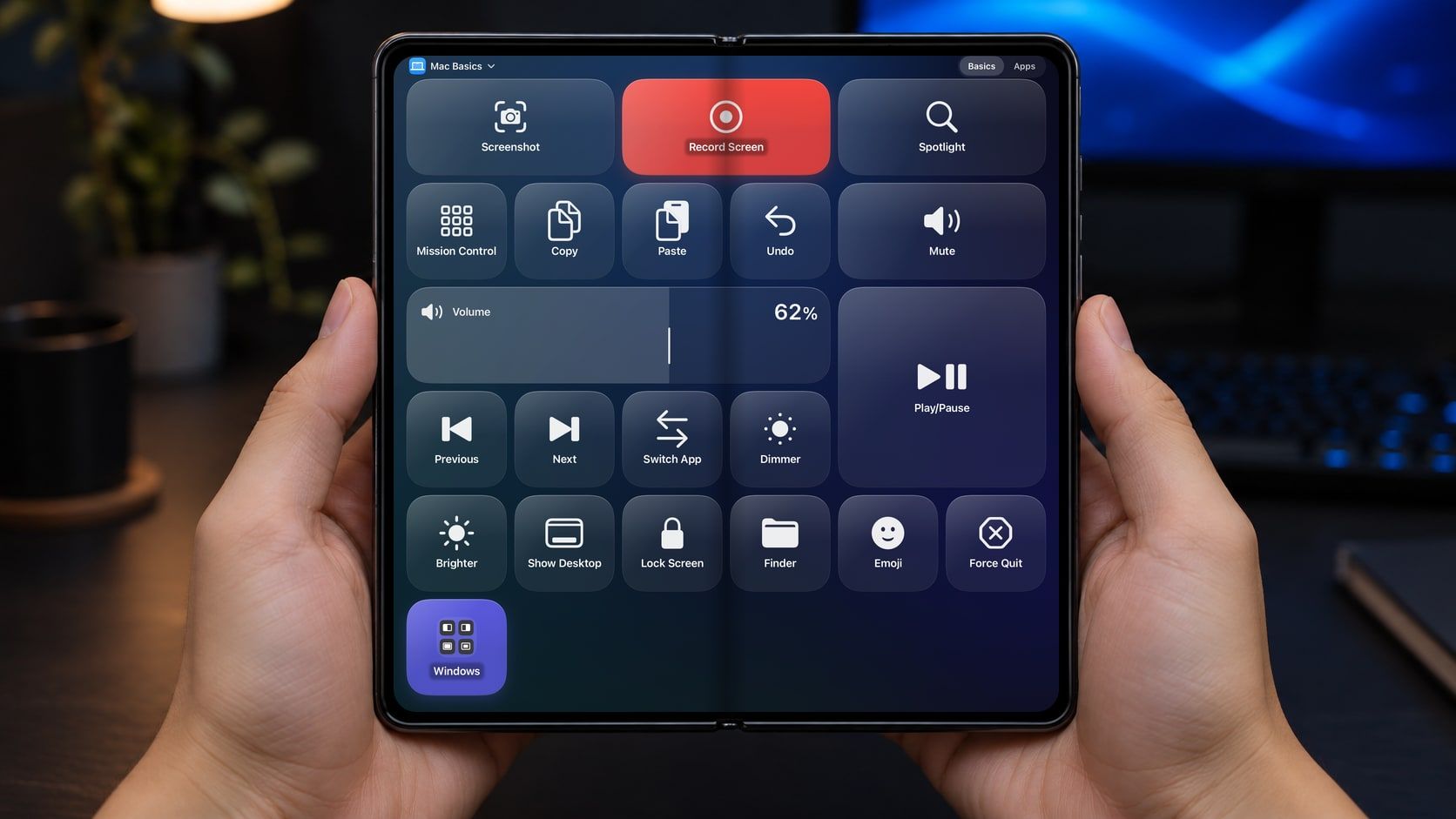
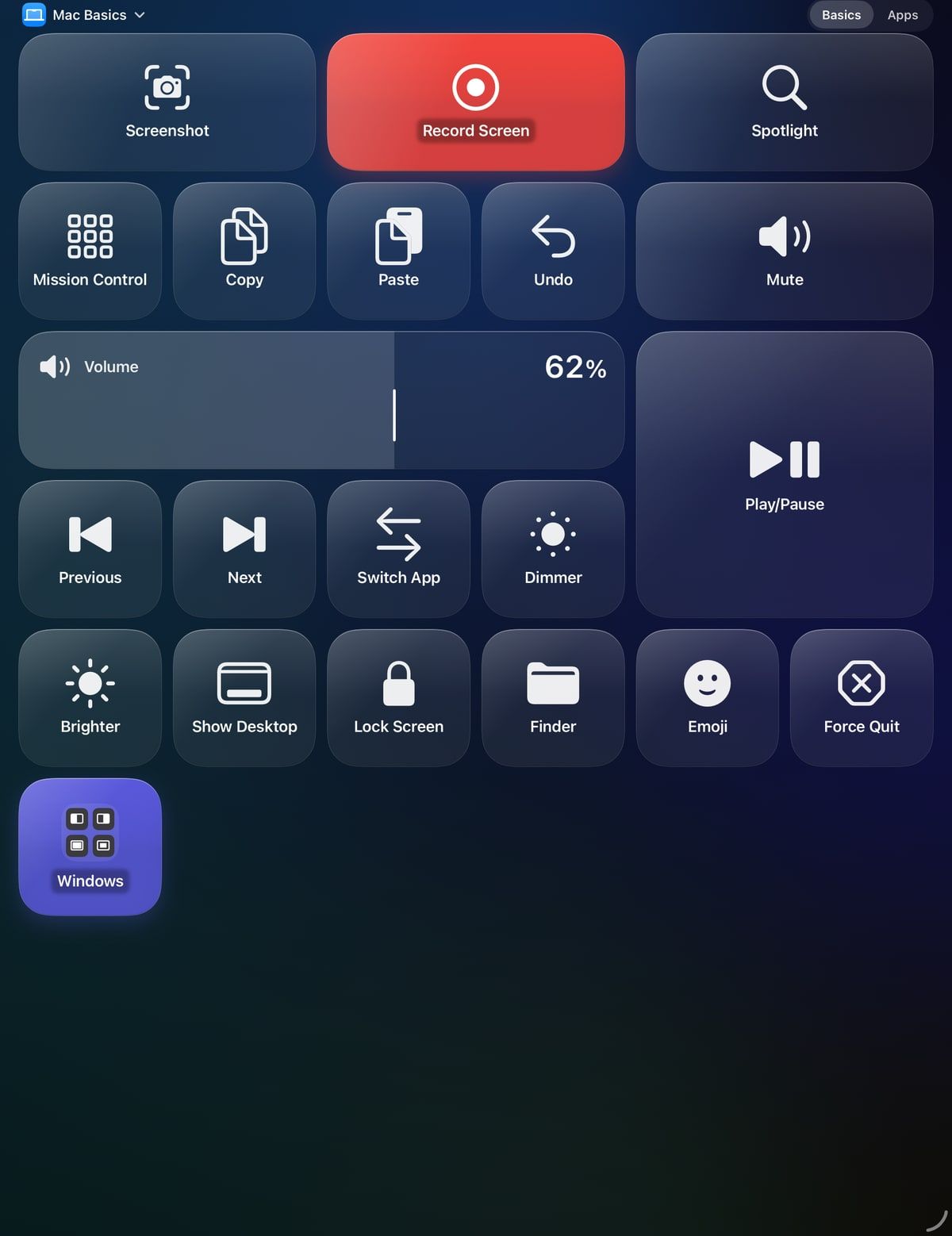
Unfold iPhone Duo for a full‑size deck

Folded shut, it’s a quick one-handed deck in your pocket. Unfold it, and Hotglass expands into the full iPad layout—giving your multi-key panels, wide sliders, and pinned controls room to breathe.

Coming soonHalf-folded laptop mode—keys on the top half, a wide trackpad and pinned controls flat on the desk

  • Pocket Deck
  • Full iPad Grid
  • Pinned Zone

04 / 05

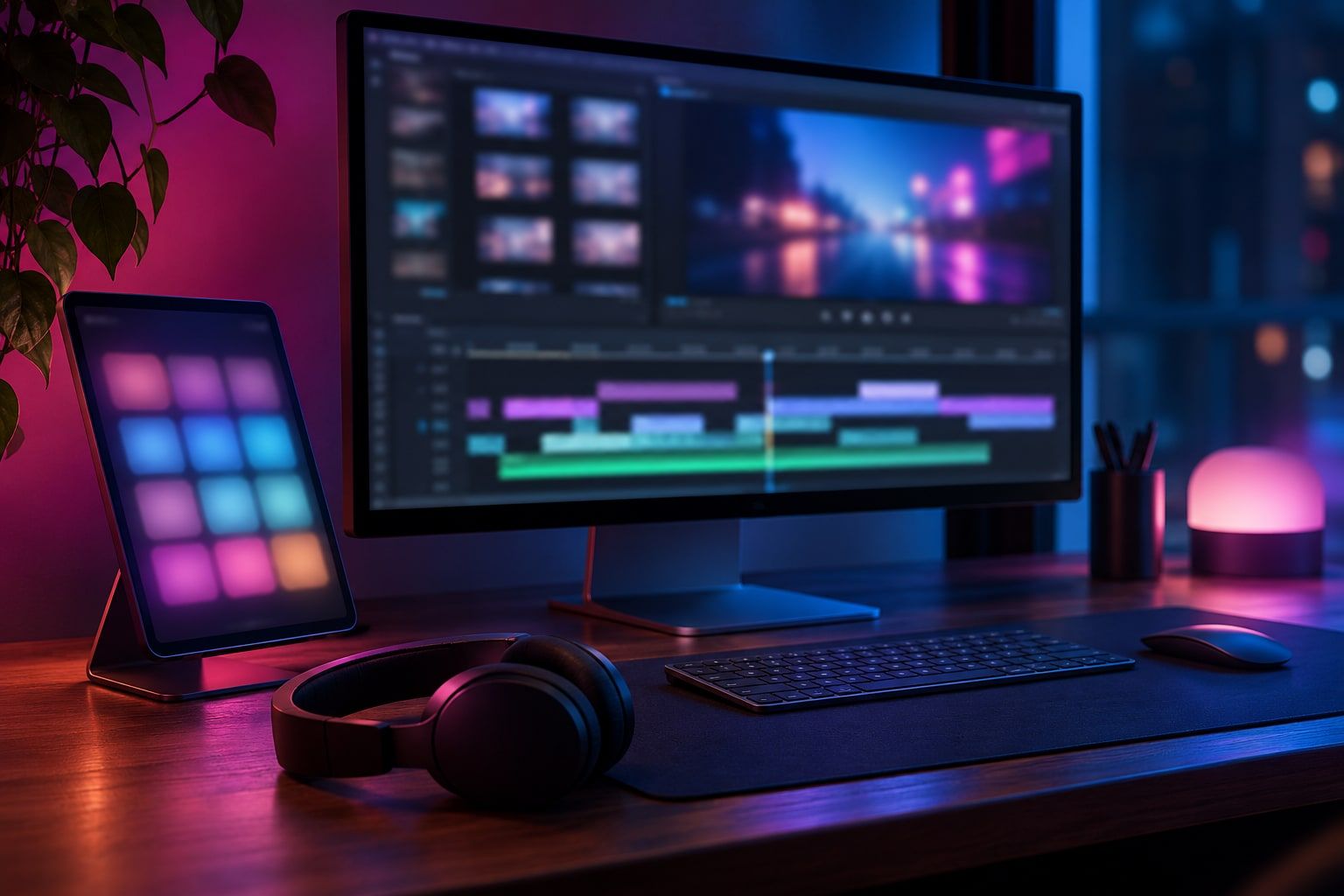
A studio console on the iPad you already own

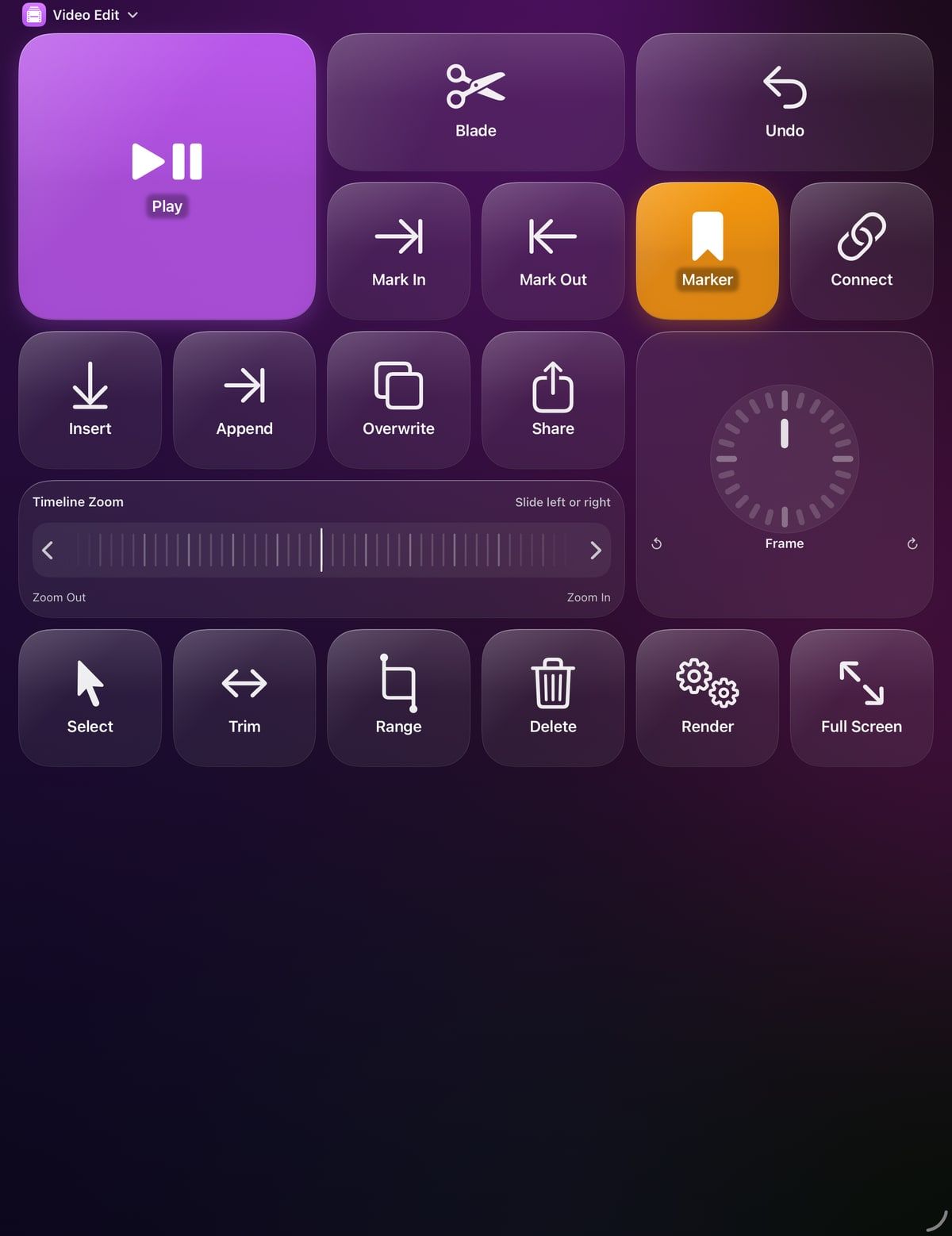
Cutting video, mixing a track, streaming, or pushing pixels? Prop your iPad beside your display instead of buying another box for your desk. Nudge timelines and brush sizes with step wheels, watch your Mac’s live system and mic volume on wide sliders, and keep a pinned trackpad right under your thumb as panels shift from app to app.

  • Blade
  • Mark In
  • Mark Out
  • Step Wheel
  • Timeline Zoom
  • Undo

05 / 05

Run the room without hovering over your laptop

Step out from behind the table when you’re pitching or leading a call. Advance slides, adjust system volume, or toggle your mic from across the room—and because the mute key reflects your Mac’s live mic state, you’ll never have to ask if people can hear you.

  • Next Slide
  • Mic Mute
  • Volume
  • Play/Pause
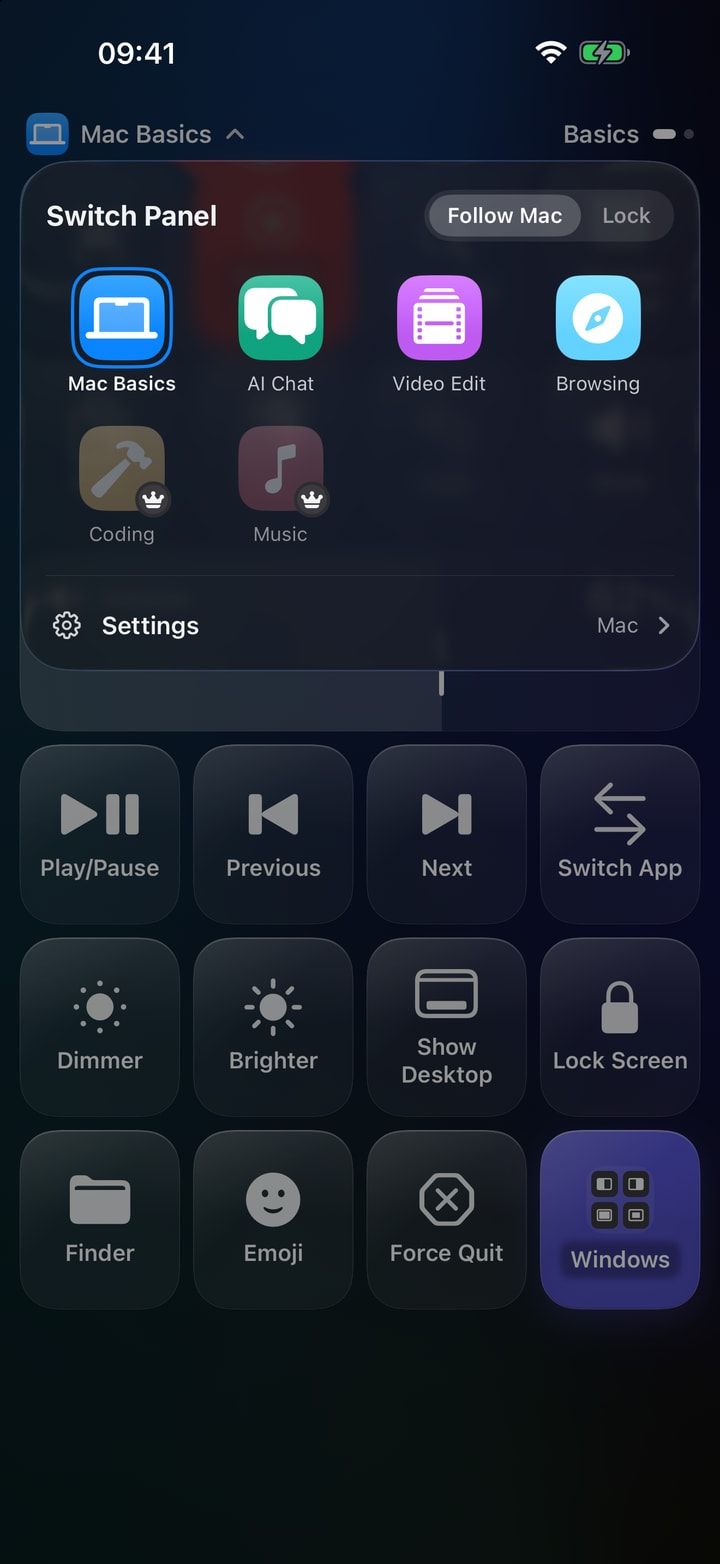
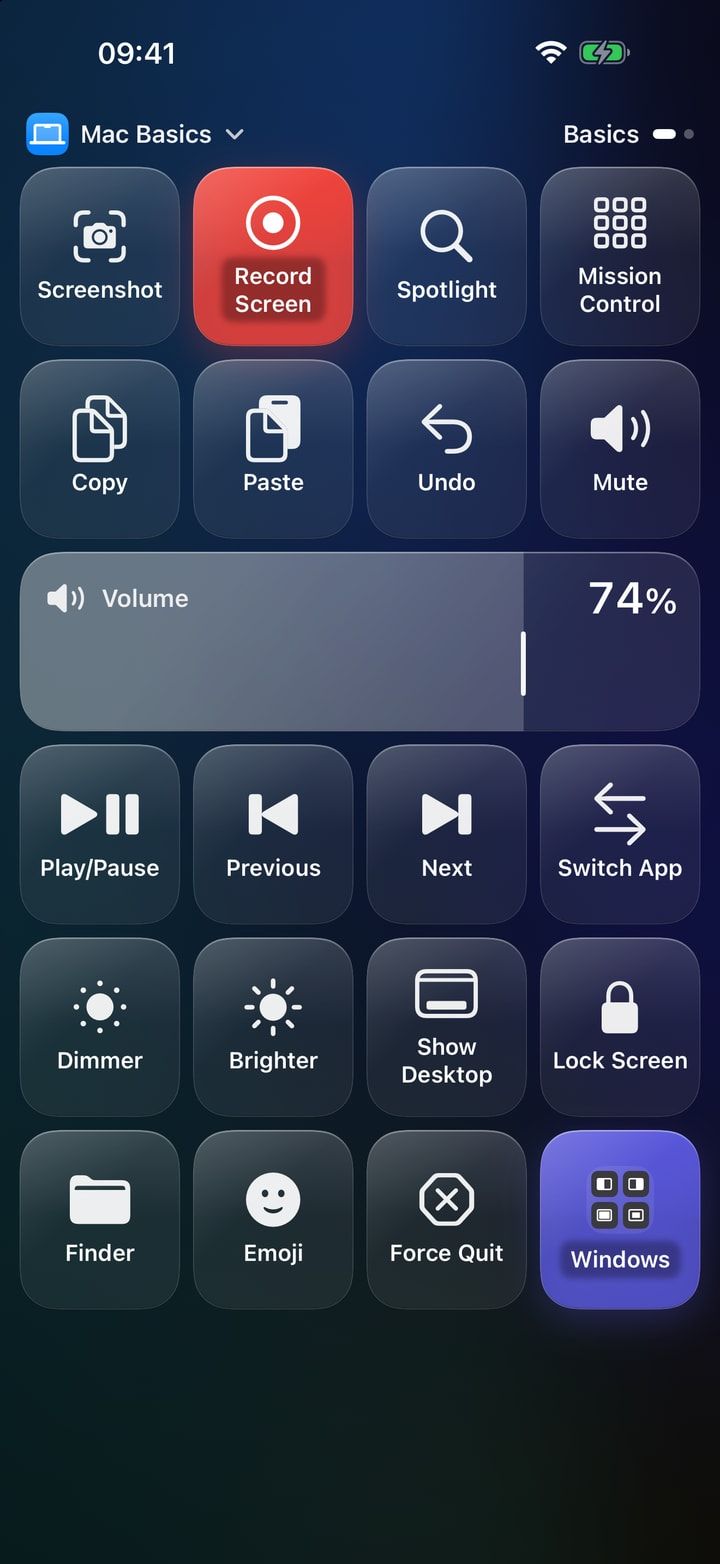
  1. Mac · Finder Mac Basics

    Click an app on your Mac. Your phone is already there.

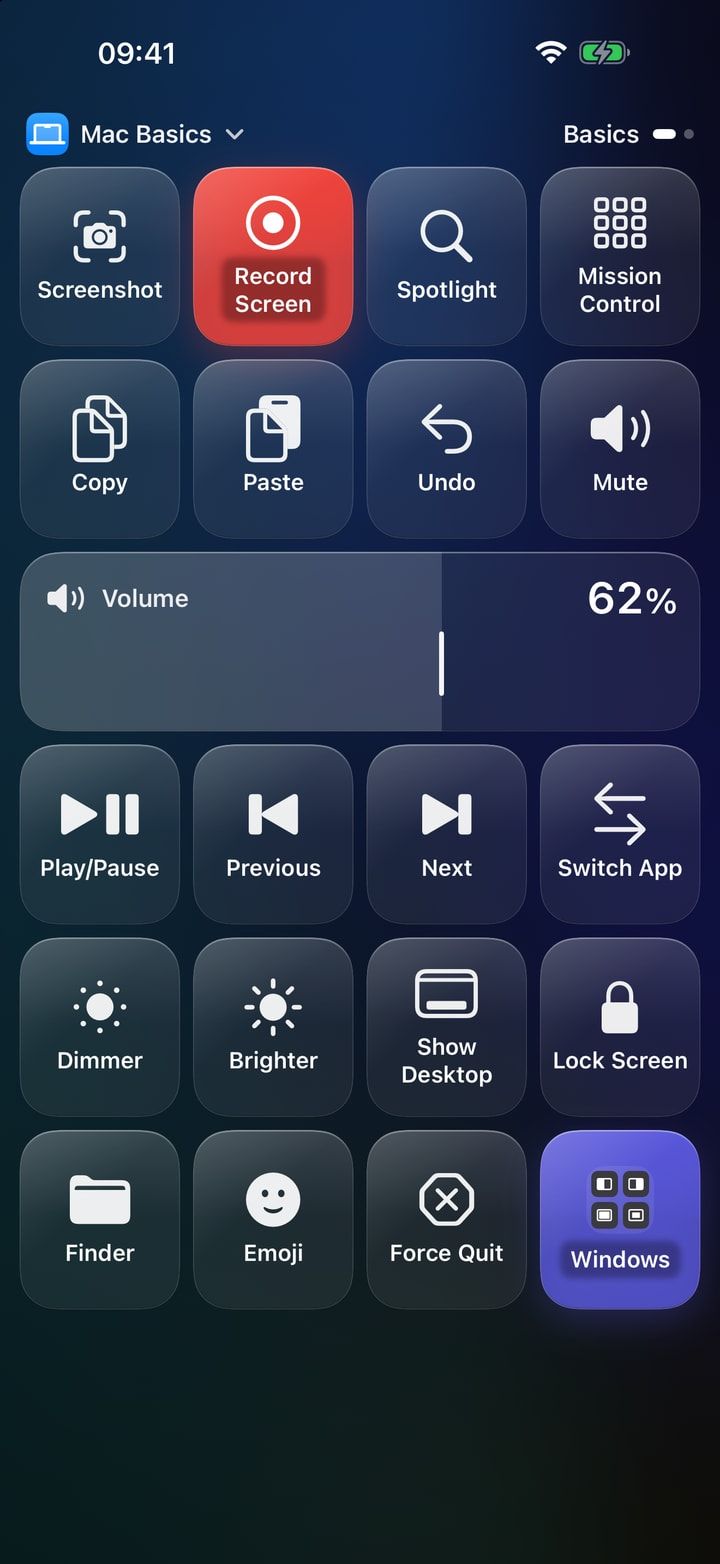
    Bring any window to the front and Hotglass swaps to that app’s panel automatically—starting with your everyday Mac essentials.

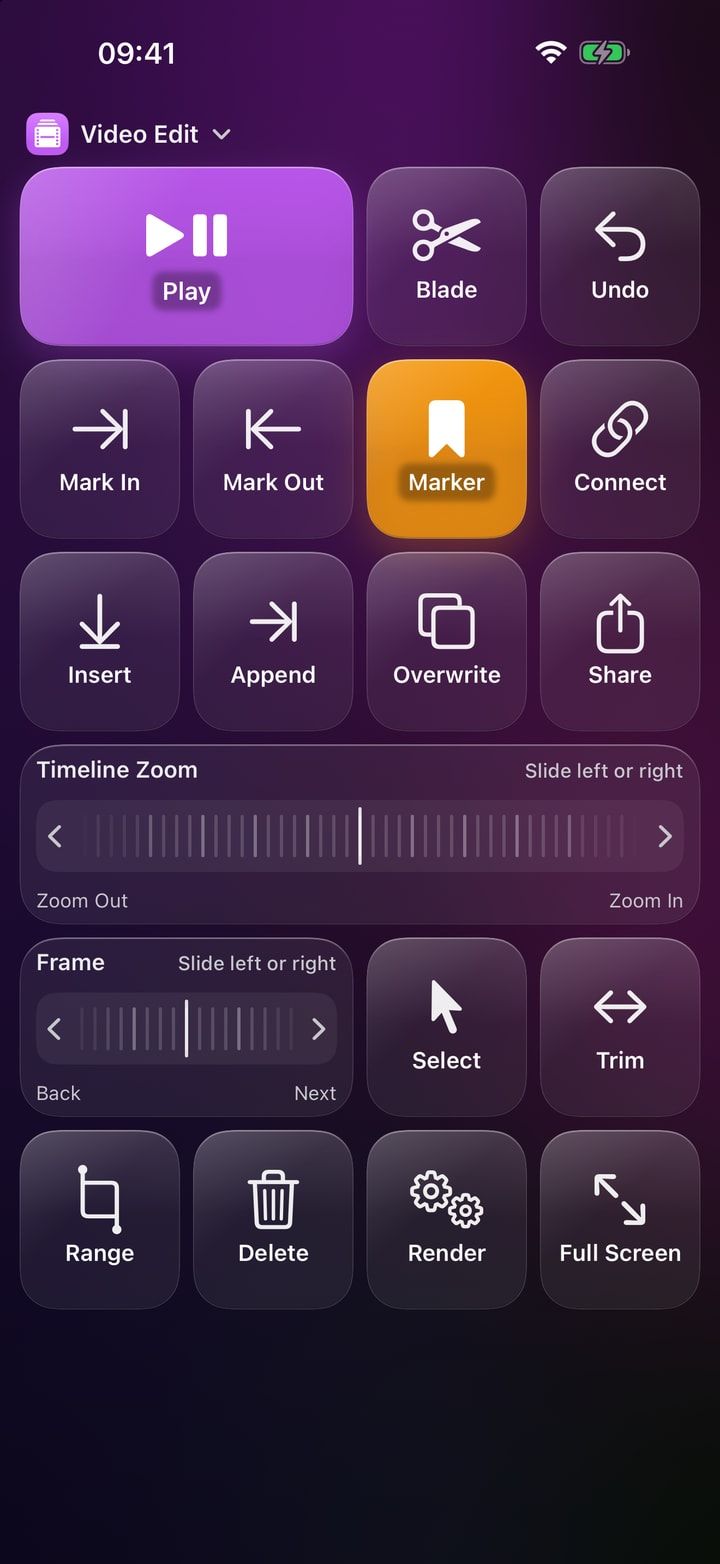
  2. Mac · Video editor Video Edit

    Open your timeline, get an editing deck.

    Blade, mark in and out, and dial through frames or timeline zoom one crisp notch at a time with step wheels.

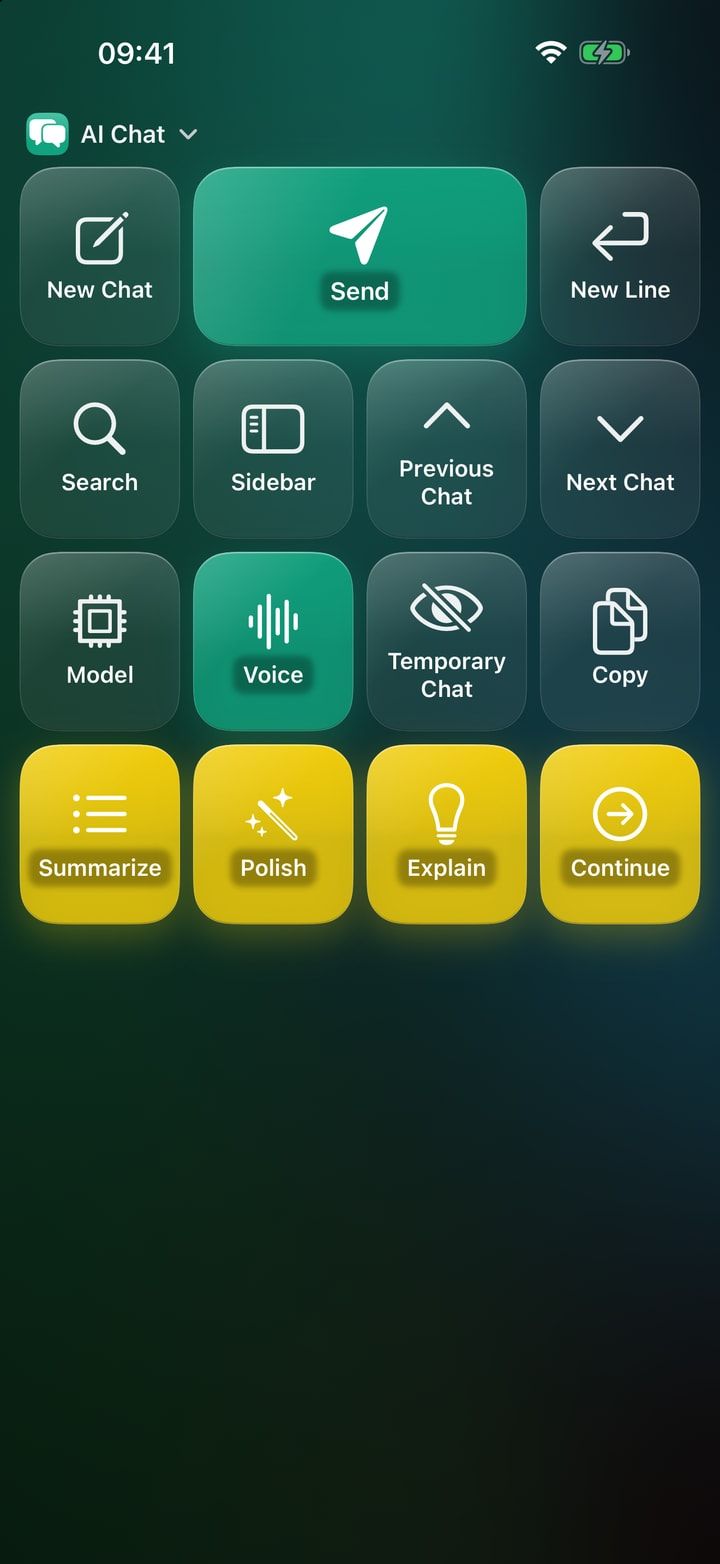
  3. Mac · AI chat app AI Chat

    Switch to AI chat, and prompts are one tap away.

    Fire off messages, insert a new line, jump into voice mode, or trigger ready-made prompts like Summarize and Polish.

  4. Mac · Any app Mac Basics

    Or lock a panel in place when you want it to stay.

    Tap the top bar to pin any panel, return to following the Mac, or switch the look between Glow and Minimal.

Under the glass

Far more than a grid of shortcuts.

Shortcuts, snippets, and hold‑to‑talk

Tap to fire a key chord, paste a text snippet, open an app, file, or URL, or run a macOS Shortcut. Or keep a chord held down for as long as your finger rests on the glass—perfect for push‑to‑talk dictation.

Trackpad, keyboard, and joystick

Glide the pointer, scroll, click, type on your Mac from your phone’s keyboard, or flick the joystick. Pin a trackpad to the persistent zone so it stays under your thumb on every panel.

Live Mac volume and tactile step wheels

Output and mic sliders reflect your Mac’s real volume in real time, and the mute key shows its true state. For app controls like timeline zoom, frame stepping, or brush size, step wheels send precise key presses notch by notch.

Up to eight steps in a single tap

Chain a sequence of up to eight actions with timed waits in between—or set a key to toggle back and forth, pick an option at random, or run two actions at once.

Let an AI build your panels

Local AI tools on your Mac can design and rearrange panels for you after you approve each tool on the Mac. They can only edit layouts—they can never press a key or trigger an action.

Private by architecture

No account, no cloud, and no analytics. Your phone never sends scripts, paths, or commands over the air—it only says which key you touched, and your Mac does the rest.

The Mac editor

Shape your deck on the big screen.

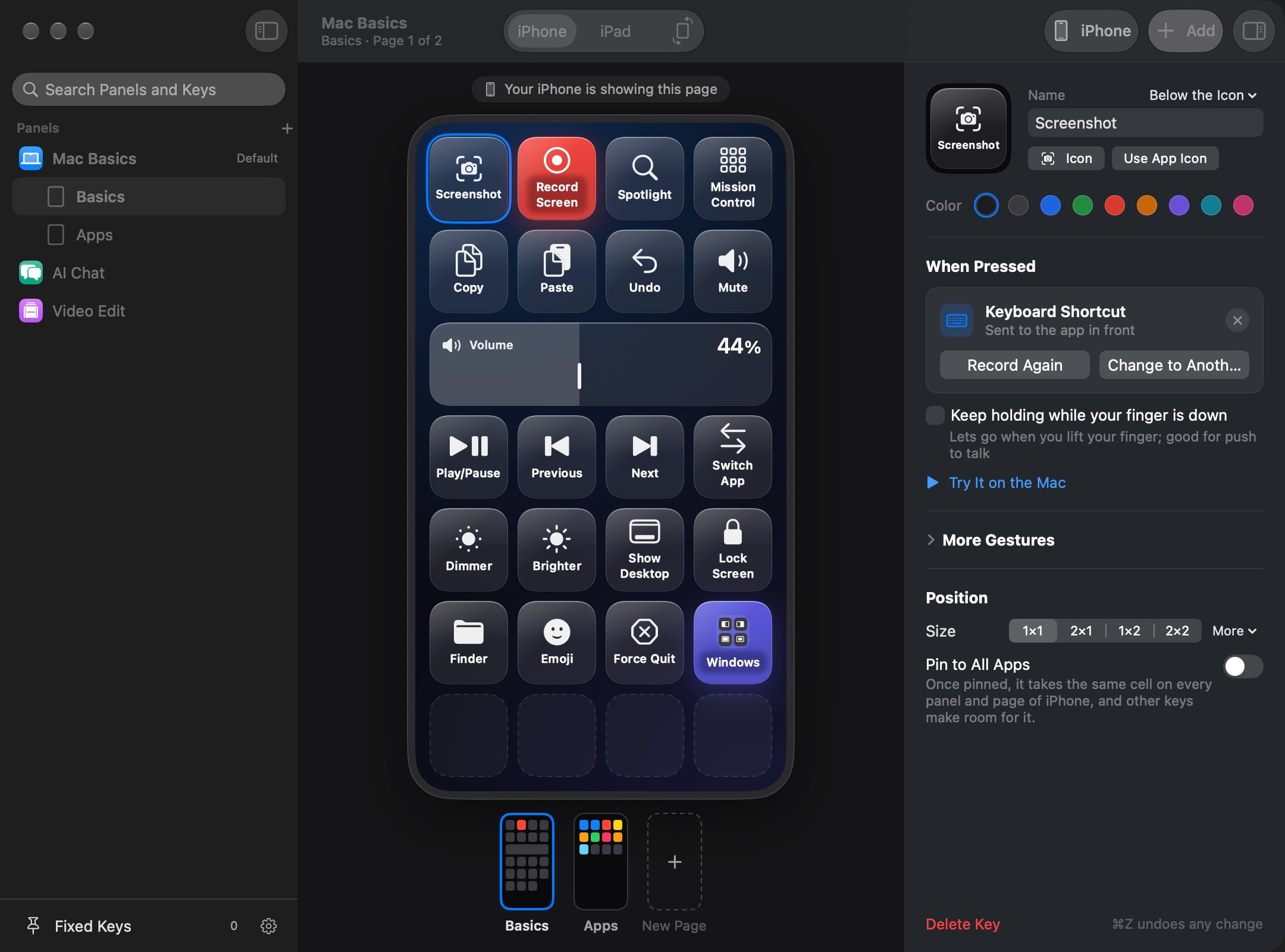
Drag keys across the grid, stretch a slider, pick icons and colors, and watch your iPhone or iPad update live as you edit.

The Hotglass editor on the Mac, with a page of keys for the iPhone

Record or pick from menus

Press a shortcut once to capture it, or choose a command straight from a running app’s menu bar.

⌘Z undoes everything

Move keys, resize controls, or swap panels freely—every change can be undone with ⌘Z.

AI‑ready, with your consent

Approve a local AI tool on your Mac to generate or tidy up a panel. It edits layouts only, never presses a key.

Never leaves your Wi‑Fi.

Your iPhone or iPad and your Mac discover each other on your local network and talk directly over an encrypted connection pinned to both devices’ cryptographic identities. When you pair, check that the six digits match, click Allow on your Mac, and they’re locked to each other—with no account, no analytics, and no server in the middle.

  • No account or sign‑in
  • No cloud or relay server
  • Actions run only on your Mac

Free & Membership

Generous for free. Unlimited when you’re ready.

The Mac app is always free. Membership is an In‑App Purchase in the iPhone and iPad app—available yearly or once for life at the local price shown in your App Store, with Family Sharing included on both.

Free

  • 3 panels of your choice, plus the default panel
  • Connect 1 Mac
  • Every key type, multi‑step action, and AI setup included

Membership

  • Unlimited panels across every app
  • Unlimited computers
  • Yearly with a 7‑day free trial, or one‑time lifetime—both with Family Sharing

From download to first tap in two minutes.

Open Hotglass on your Mac, tap your Mac’s name on your iPhone or iPad, verify the six digits match, and your deck is live.

Mac app coming soon App Store · coming soon

Mac app free · macOS 14 or later · iOS 17 / iPadOS 17 or later

See how connecting works